TECH Signal 382
Here's how to format a USB drive on Windows
 ↗
↗
The article provides a step-by-step guide for formatting a USB drive on Windows and explains which file system to choose based on intended use.
For engineers, knowing how to properly format removable storage ensures data integrity, compatibility across platforms, and avoids hidden corruption or malware. Selecting the appropriate file system prevents limitations such as the 4 GB file size cap of FAT32 and enables features like encryption or partitioning when needed. The guide also highlights that even new drives benefit from a fresh format to remove factory configurations that may not match specific workloads.
Written by elseif from the cluster below · every claim links back to a sourceThe three things worth knowing
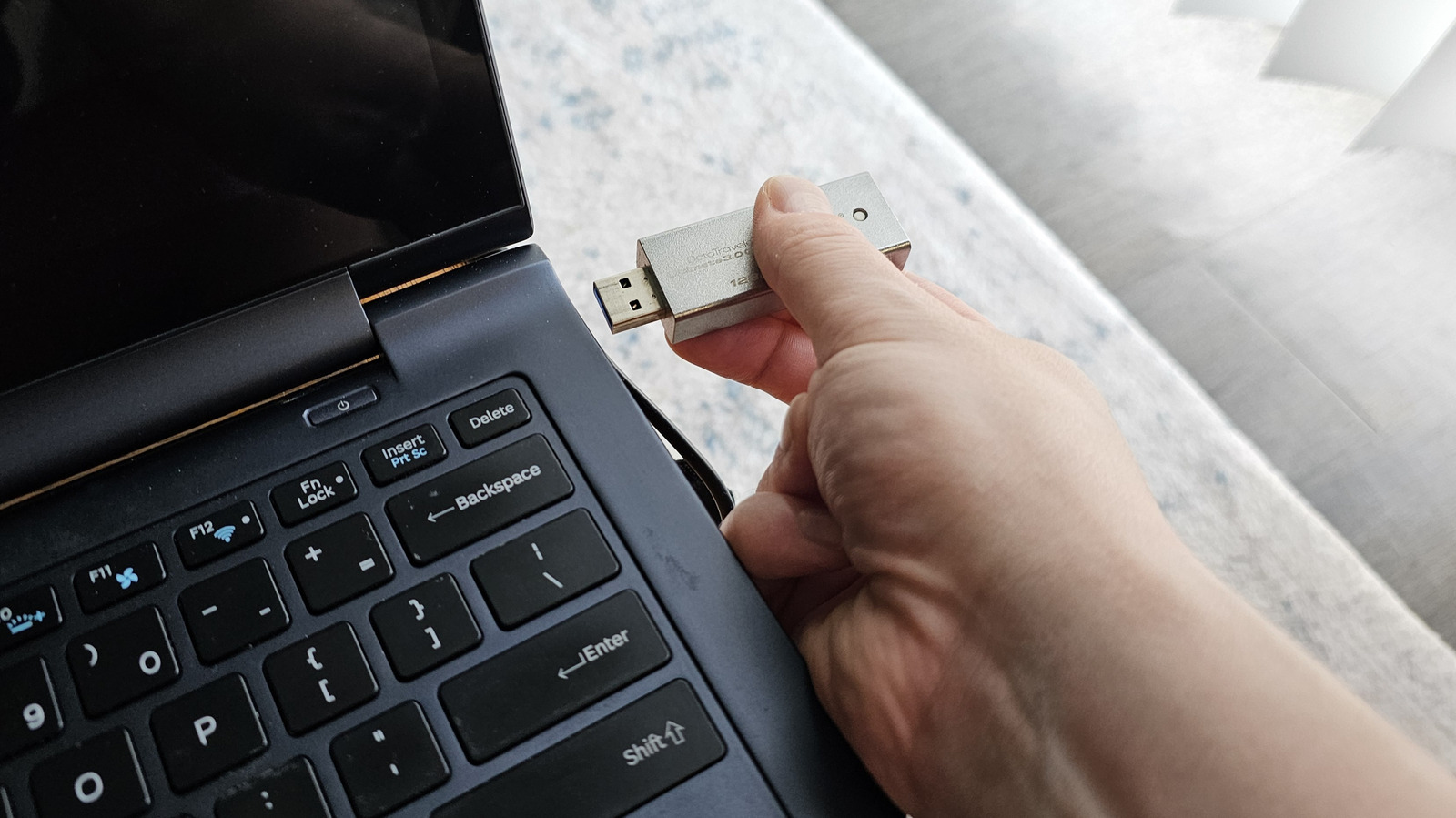
Plug the drive into a high-speed USB port, open Windows Explorer, right-click the drive in This PC, and choose Format after closing any programs using it.
Choose NTFS for exclusive Windows use, exFAT for cross-platform compatibility with devices like Android, macOS, or Linux, and FAT32 only for legacy hardware that cannot handle newer formats.
Adjust allocation unit size to match typical file sizes, set a volume label if desired, and confirm the format; the process can take seconds to minutes and includes a bad-sector scan.
THE READ
What the cluster adds up to.
Formatting a USB drive does more than delete visible files; it overwrites sectors so previous data cannot be recovered, establishes a fresh file system, and scans the media for bad sectors. This process also removes latent ghost files and any hidden malware that might reside in unused space, thereby optimizing the drive’s stability for future use. Engineers should treat formatting as a preventive maintenance step, especially before reusing a drive that has held sensitive or critical data.
The guide outlines three file system options. NTFS is recommended when the drive will stay within Windows environments because it supports partitioning, encryption, and larger volumes. exFAT offers broad compatibility with non-Windows systems such as Android phones, macOS computers, and Linux machines while still handling files larger than 4 GB. FAT32 remains the most universally compatible format for very old devices like car stereos or legacy printers, but its 4 GB file size ceiling and higher fragmentation tendency make it unsuitable for modern workloads.
To begin formatting, insert the USB drive into a high-speed port, launch Windows Explorer, navigate to This PC, locate the drive, and right-click to select Format. Before proceeding, close any applications that might be accessing the drive or its files to avoid locking errors. In the Format dialog, pick the desired file system from the dropdown, optionally adjust the allocation unit size to suit typical file sizes, and enter a volume label if a custom name is wanted.
Even brand-new USB drives often ship pre-formatted with FAT32 to maximize out-of-the-box compatibility, which may not align with an engineer’s performance or capacity needs. Reformatting the drive to NTFS or exFAT removes the factory configuration, aligns the allocation unit size with intended use patterns, and ensures the drive operates at its specified speed and reliability. This step is particularly important when the drive will store large datasets, virtual machine images, or high-resolution media.
The formatting procedure can fail or be ineffective if the hardware itself is damaged; persistent bad sectors may be marked as unusable, and severe physical defects can halt the process entirely. Additionally, selecting FAT32 for files exceeding 4 GB will result in an error during copy or save operations, underscoring the importance of matching the file system to the actual data characteristics. Engineers should verify drive health with diagnostic tools before relying on a freshly formatted device for critical tasks.
Written by elseif from the cluster below · checked for specifics the sources never containedTHE CLUSTER